Orient Direction

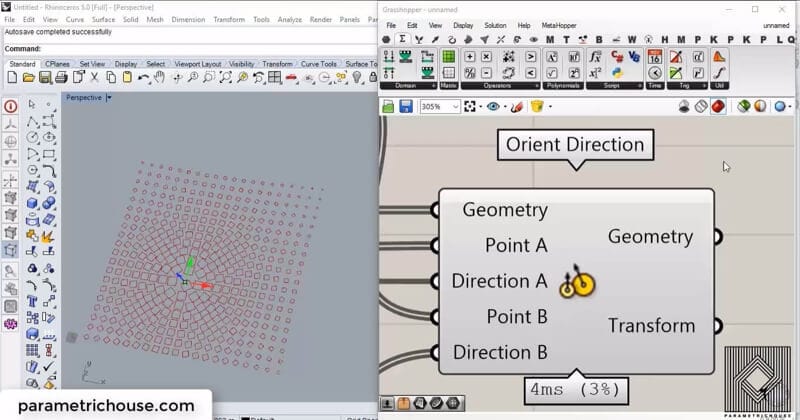
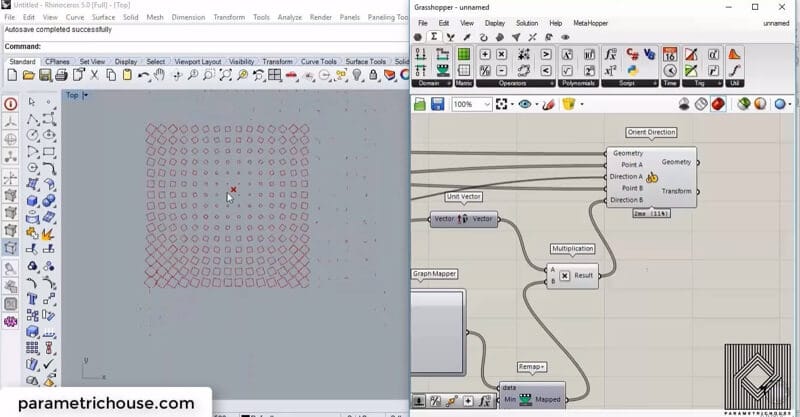
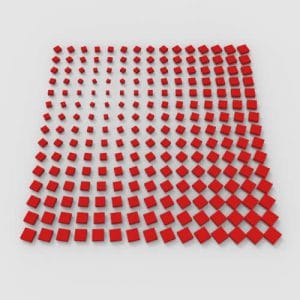
Orient Direction is a tool which can perform 3 different transformations on geometry. You can Move, Rotate and Scale. In this example, I will be showing how you can do this by a point and a set of rectangles.

Duration : 15 Minutes

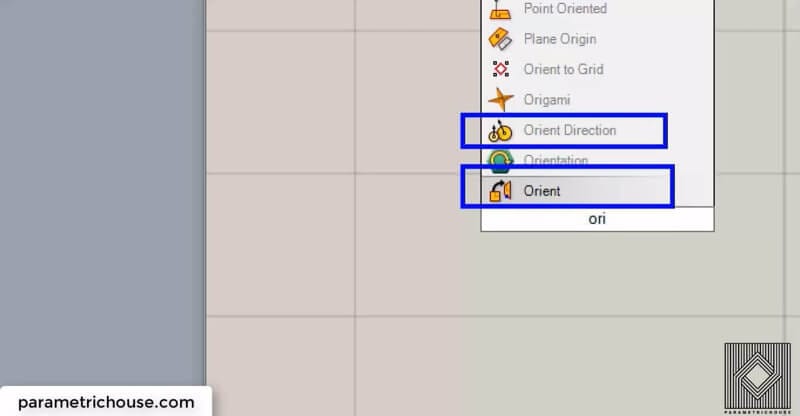
You can simply double-click on the canvas and search for “Ori”. There are two tools for orienting. One is Orient which actually transforms the geometry from a plane to another plane. Second is the “Orient Direction” which we will be talking about.

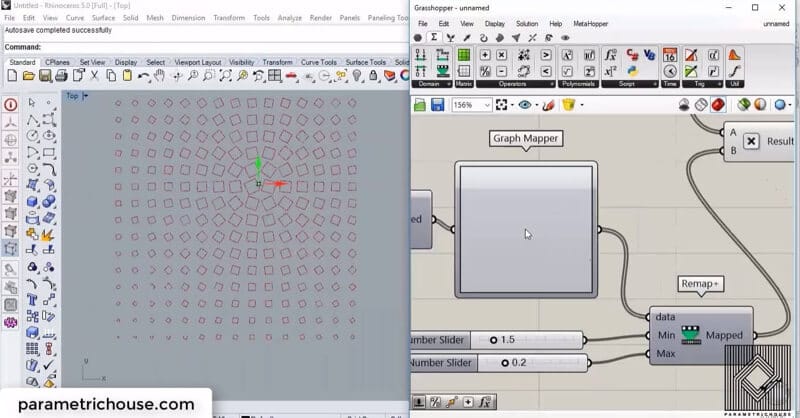
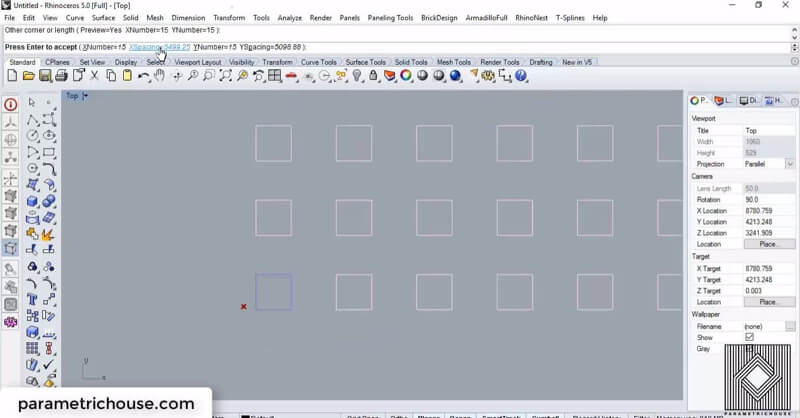
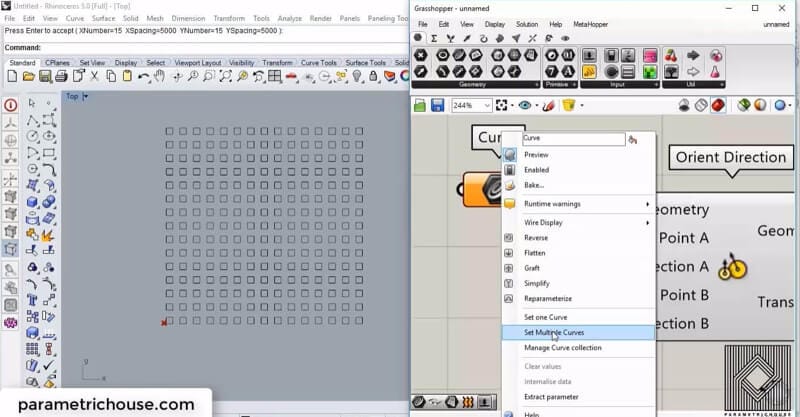
To start from scratch we can draw multiple geometries to see the orienting effect. We can easily array a rectangle or a square to have a grid of curves. I gave the array a 15 for row and column and a 1 for z-direction. The spacing of the squares is 5000 for each direction.

After creating the squares we can simply put a curve on the canvas (Params>Curve) and right click on it and choose “Set multiple curves” to import them into Grasshopper.

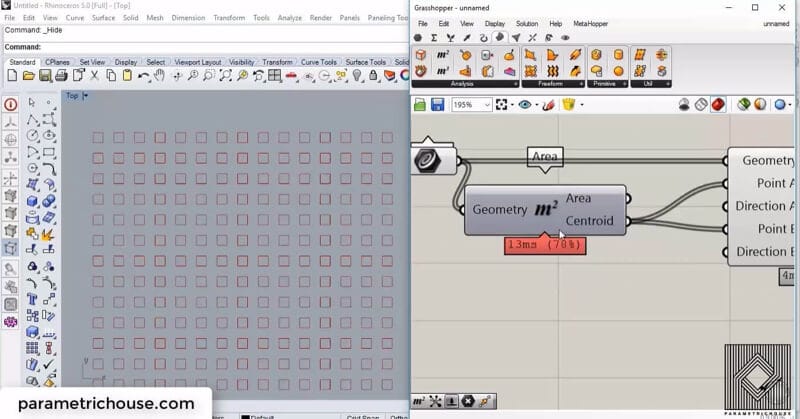
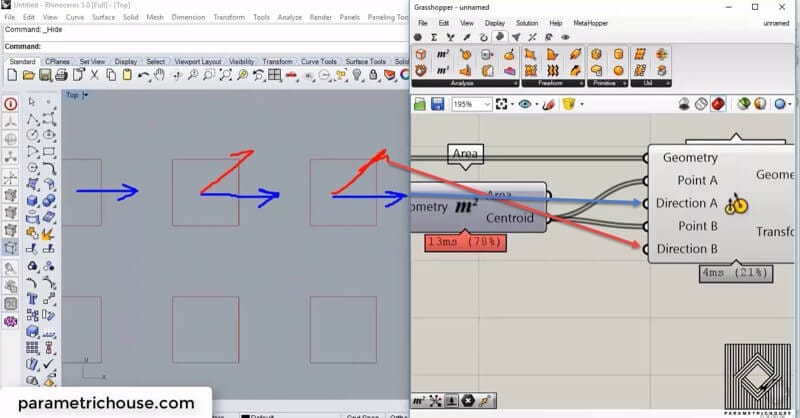
Later we need to define the Point A as the reference point and Point B as the target. Let’s assume that we don’t want to move the squares. In this case, both of the inputs should be the same! We can use an “Area”(Surface>analysis) to extract the squares centroid. You can also use “polygon center” (Curve>analysis).

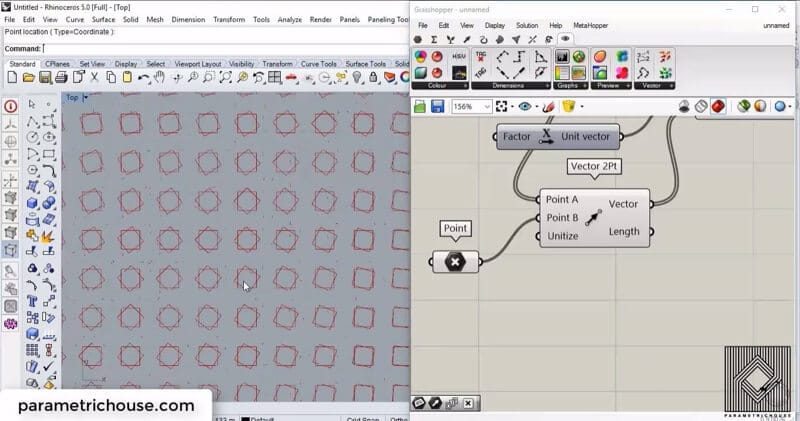
To see the rotating squares, we should define “Direction A” and “Direction B”. By defining an “X vector” (Vector>Vector) we can say that we are using the x-direction as the turning handle of geometry (the blue vectors). If we define the red v

ectors as the target direction the squares will rotate to be aligned with it.

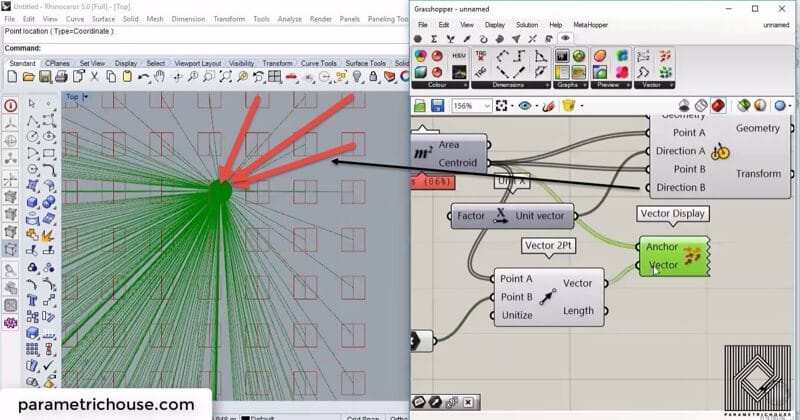
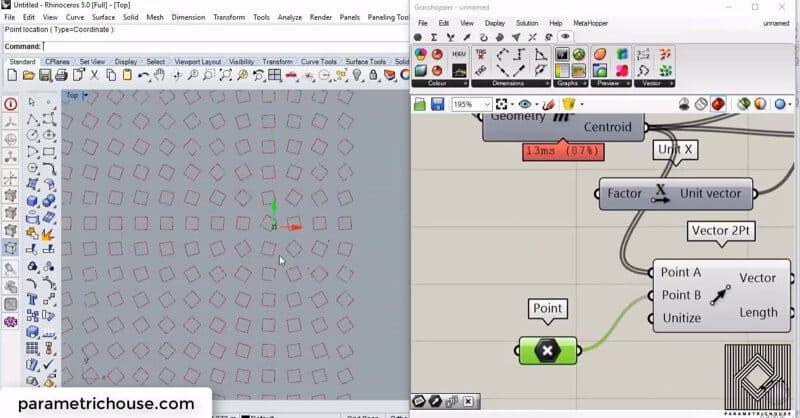
By using a point we can rotate the squares towards it. We use a “Vector 2PT” (Vector>vector) to easily define a target direction by two set of points. The start of the vector is the centroid of the squares and the target point is the point we defined earlier.

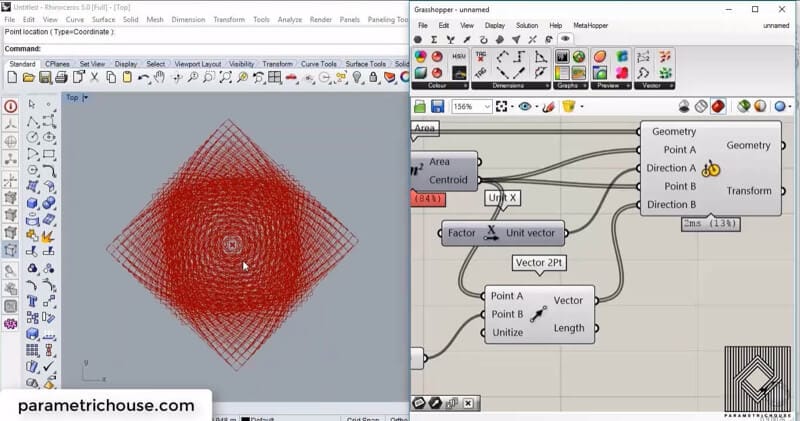
if we connect the resulting vector to “Direction B” we notice that the squares are scaled and rotate and the same time but the scale is so big that we cant have our desired results.

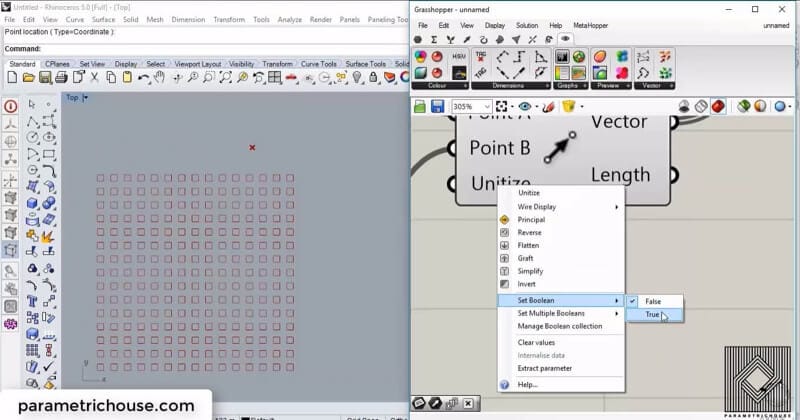
The problem is that “vector 2pt” will give us a vector with a length equal to the distance between the point and the centroids. And because the “Direction A” was a unit X vector, Grasshopper will compare the length of the vectors to define the scale factor. we can easily right click on unitize and set it to true to make the squares the same size.

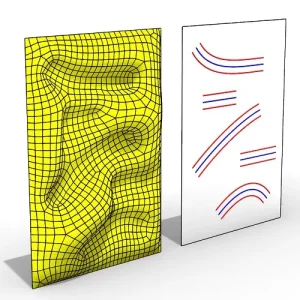
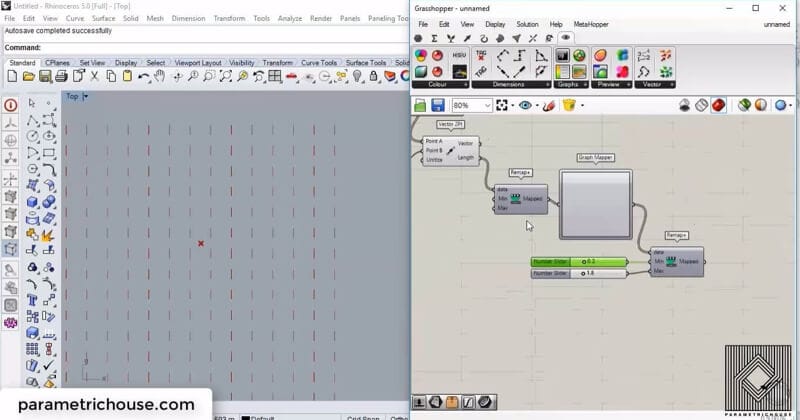
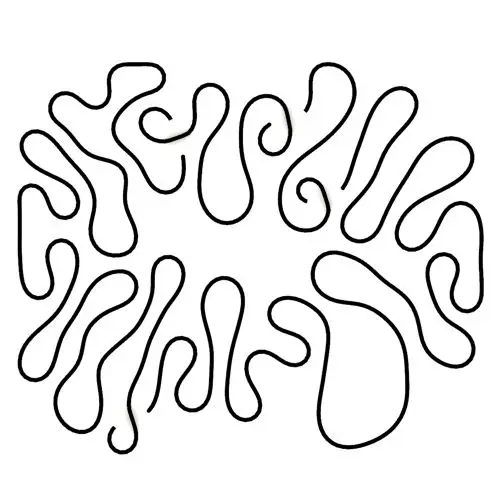
To make the scaling effect more controllable we can change the unitize back to false (because we need the length of the vectors) and then use the “remap technique“(scroll down to see the white picture defining this technique) to control the scale.

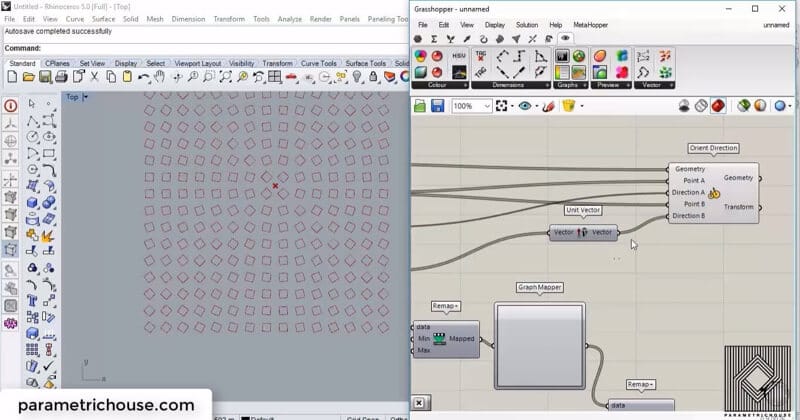
We can use a “unit vector” (vector>vector) to unitize the direction but use the length of the remap.

By multiplying the unit vector and the remap we can have the desired result.

You can also change the minimum and maximum of the remap to have the bigger squares at the point. By defining a Graph mapper you can also change the scale even more.

Orient Direction

Orient Direction is a tool which can perform 3 different transformations on geometry. You can Move, Rotate and Scale. In this example, I will be showing how you can do this by a point and a set of rectangles.

Paracourse Files

Reviews

There are no reviews yet.

Be the first to review “Orient Direction”

Differential Growth

In this Kangaroo Grasshopper tutorial, you’ll learn how to create a differential growth pattern on any mesh surface by projecting
Parametric Vase

In this Grasshopper beginner tutorial, you’ll learn how to design a parametric vase with triangular faces, fully controllable height, thickness,
Connecting Towers

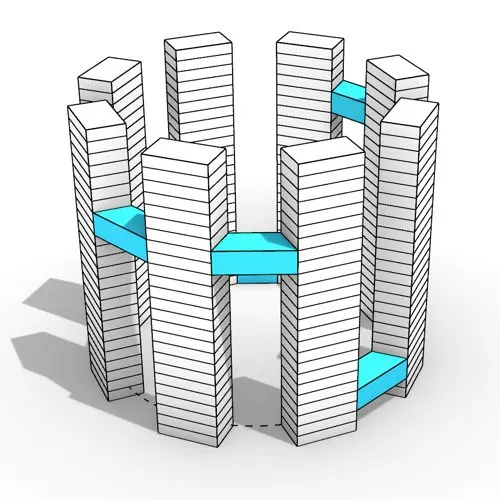
In this Grasshopper tutorial, you’ll learn how to design a series of parametric towers arranged around a curve and connect

Difference Contour

In this Grasshopper tutorial, you’ll learn how to design a parametric wall using solid difference and contour techniques.

Parametric Mesh

In this Grasshopper example file, you can model an exoskeleton Mesh structure with entwined curves parametrically.

Voronoi Multipipe

In this Rhino Grasshopper tutorial for beginners, you’ll learn how to model a parametric Voronoi MultiPipe SubD structure on a
Ngon Mesh

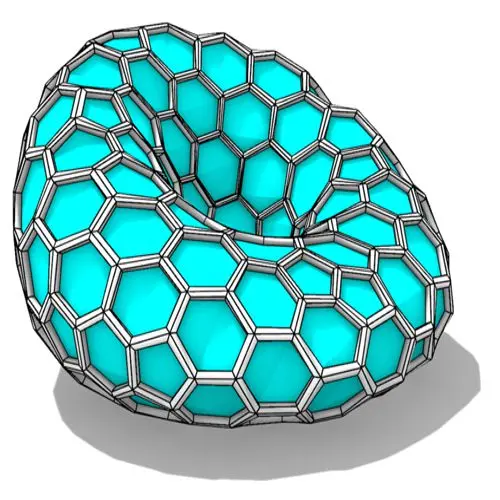
In this Grasshopper tutorial, you’ll learn how to create a parametric form by defining a base polygon and converting it
Minimal Surface

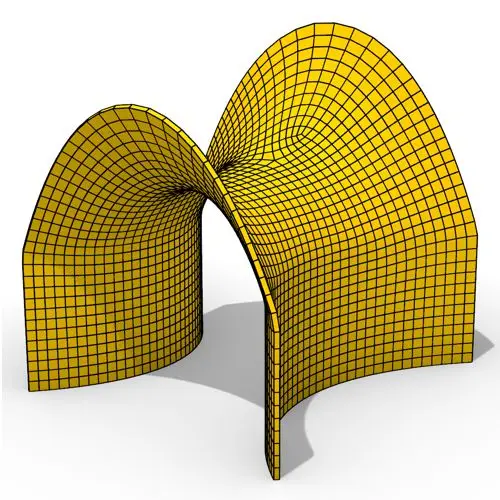
In this Grasshopper tutorial, you’ll learn how to create a minimal surface generated from a series of catenary curves using
Wind Pavilion

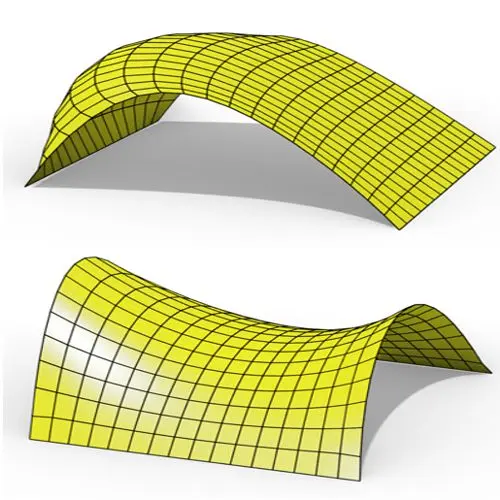
In this Grasshopper Kangaroo tutorial, you’ll learn how to create a parametric mesh and deform it using wind forces and
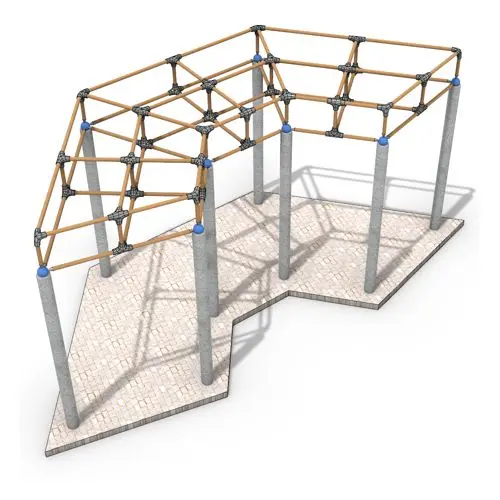
Space Frame

In this Grasshopper tutorial, you’ll learn how to create a simple two-layer Vierendeel space frame structure by defining any four-sided
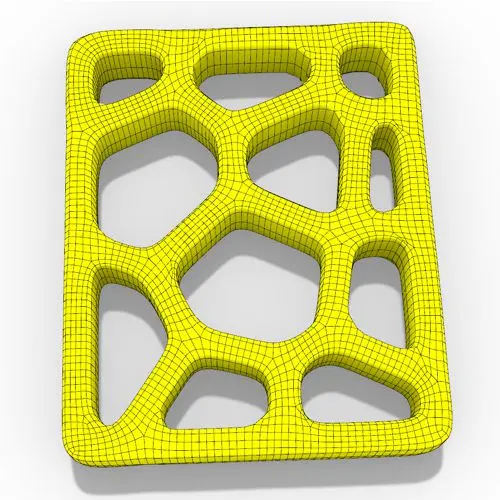
Voronoi Mesh

In this Grasshopper Voronoi tutorial, you’ll learn how to create a parametric mesh generated from random or controllable Voronoi cells
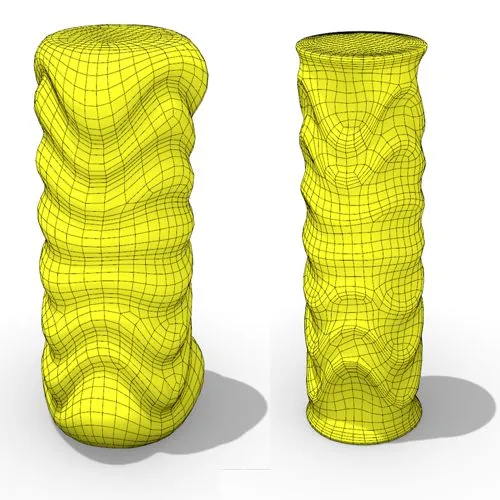
Inflated Mesh

In this Grasshopper tutorial, you’ll learn how to create a dynamic parametric mesh using section curves and Kangaroo physics to
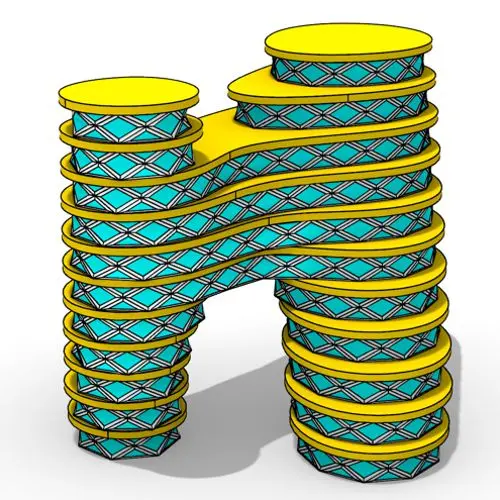
Bridge Tower

In this Grasshopper tutorial for beginners, you will learn how to design a parametric tower defined by four control points

Attractor Modules

In this Grasshopper tutorial for beginners, you will learn how to design a parametric facade composed of modular openings.
Frames on Curve

In this Grasshopper tutorial because we know how to convert a series of lines to a frame now we can
Brick Wall

In this Rhino Grasshopper Script, you can model a parametric brick wall by defining a base curve
3- Print + Loop

In this Grasshopper Python Lesson, we are going to talk more about the basics and how to use Print and
Rotating Lines

In this Rhino Grasshopper Tutorial we are going to learn how to make a series of rotating lines around two
6- Parametric Vase

In this Paracourse Lesson (25 Minutes), You can learn how to model a parametric vase by using a Perlin Noise
2- Manage output

In this Grasshopper lesson, I will talk about managing output data with a turning tower example. First I,m going to
Partition List

2-Canvas

In the introductory lesson, we’ll explore the Grasshopper 1.0 canvas and familiarize ourselves with its fundamental features.
Shortest List

3- Shortest List

Now we have learned the basics of the canvas we will take a look at the most important aspect of
Partition List

4- Partition List

Now we will learn how to manage data with more tools like list length , partition list and simplify.
After learning about the Partition list, it’s time to learn how to destroy the data trees with flatten and also change them with flip matrix.

6- Flatten

After learning about the Partition list, it’s time to learn how to destroy the data trees with flatten and also
Hexagonal Facade

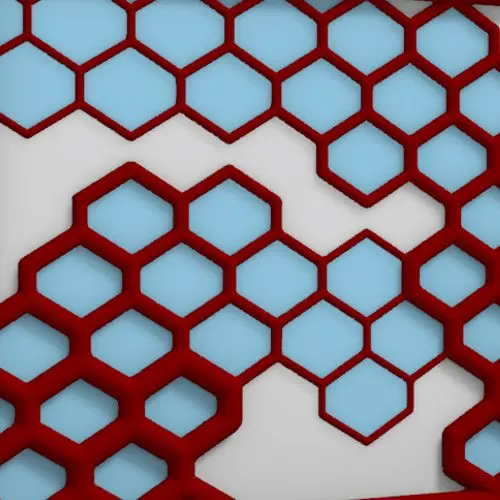
In this Grasshopper example file, you can design a parametric facade with variable-thickness hexagonal cells.
Tensile Facade

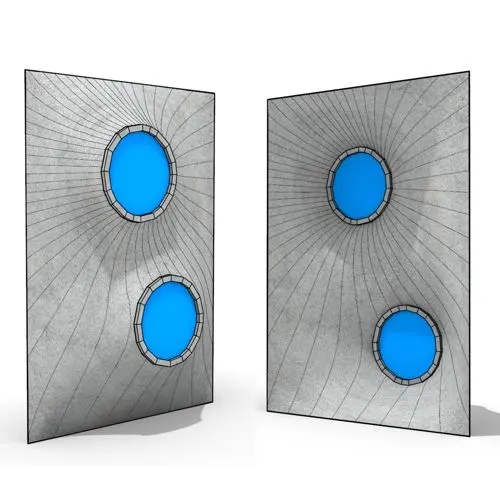
In this Grasshopper example file, you can model and simulate a parametric facade with free-form openings using the mesh relaxation
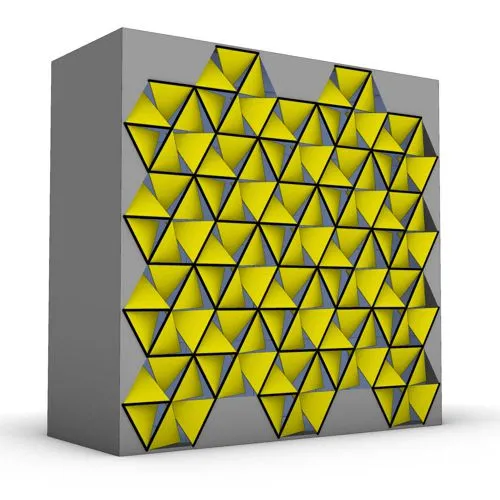
Hexagonal Panels

In this grasshopper example file, you can use a hexagonal module to model a parametric facade.
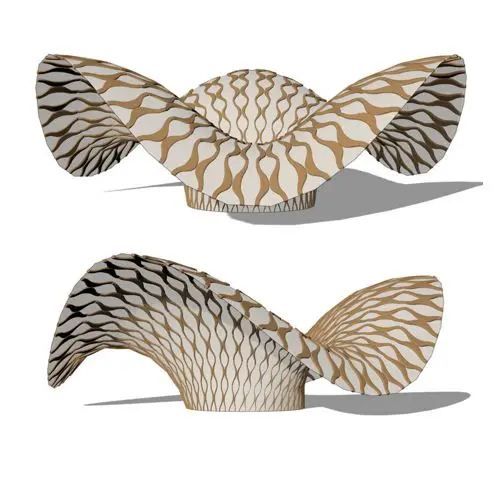
3D Wave Pattern

In this grasshopper example file, you can use the morph components to apply a 3d wave pattern on a mesh.
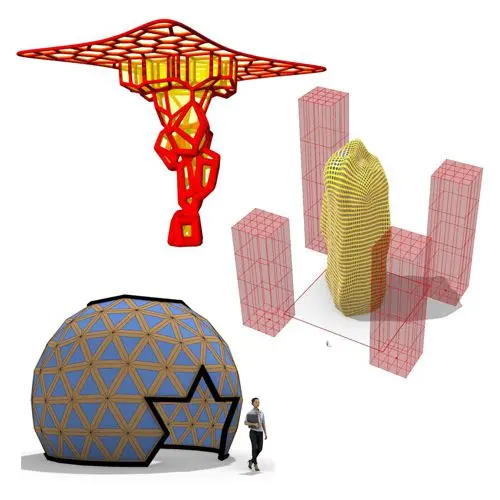
Parametric Ideas 327

In these Grasshopper example files, you can design a parametric geodesic dome with customizable openings, generate optimized tower forms using

Parametric Ideas 326

In this Grasshopper example file, you can create relaxing Voronoi cells on a facade , a blobby form with a


Inflate Curves

In this Grasshopper Kangaroo tutorial, you’ll learn how to inflate a mesh by defining boundary curves and specifying fixed curve

Tensile Corridor

In this Grasshopper Kangaroo tutorial, you’ll learn how to create a series of tensile structures between two profile curves and

Aligned Dimension (Rhino 8)

Automate and adjust dimensions in Grasshopper with the new Aligned Dimension component in Rhino 8. Ensure real-time accuracy and precision

Discontinuity

Easily detect kinks and sharp transitions in curves with the Discontinuity component in Grasshopper! Identify and split curves precisely where

Append PolySurfaces

Easily merge multiple polysurfaces into a single brep with the Append Polysurfaces component in Pufferfish! Ideal for capping, offsets, and

Model Block Instance (Rhino 8)

Easily manage repetitive models with the Model Block Instance component in Rhino 8. Duplicate block instances efficiently while maintaining precision

Flip Matrix Error

Struggling with Flip Matrix errors in complex data trees? Use the Path Mapper to reorganize data with custom rules and

Divide Length/Distance

Discover the key differences between Divide Length and Divide Distance in Grasshopper. Learn how these components handle straight and non-linear