Differential Growth
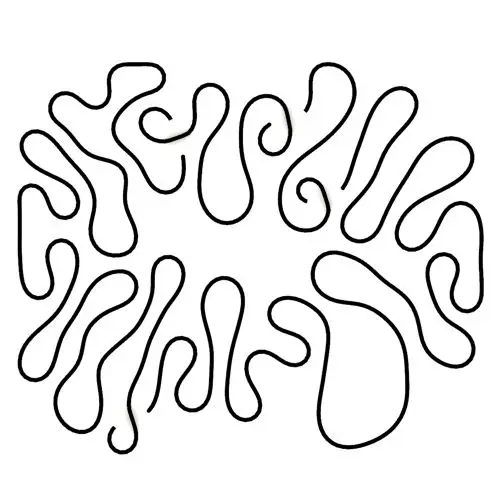
In this Kangaroo Grasshopper tutorial, you’ll learn how to create a differential growth pattern on any mesh surface by projecting
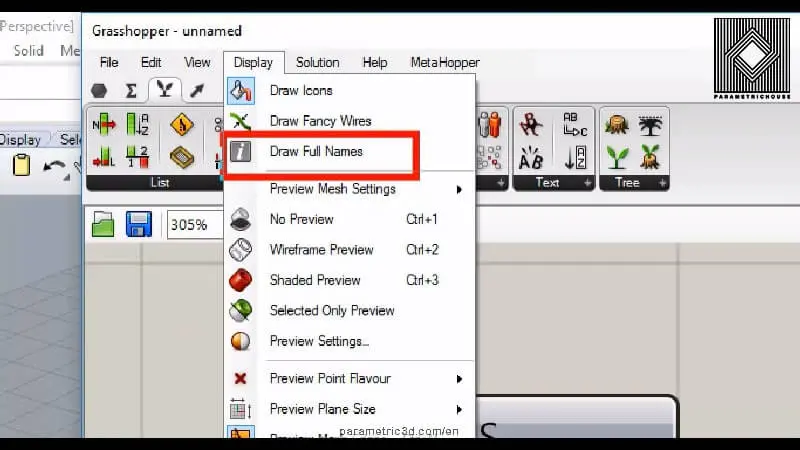
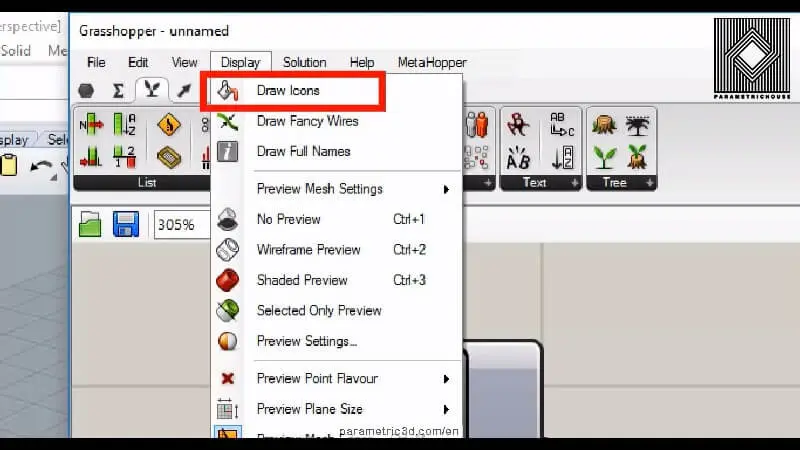
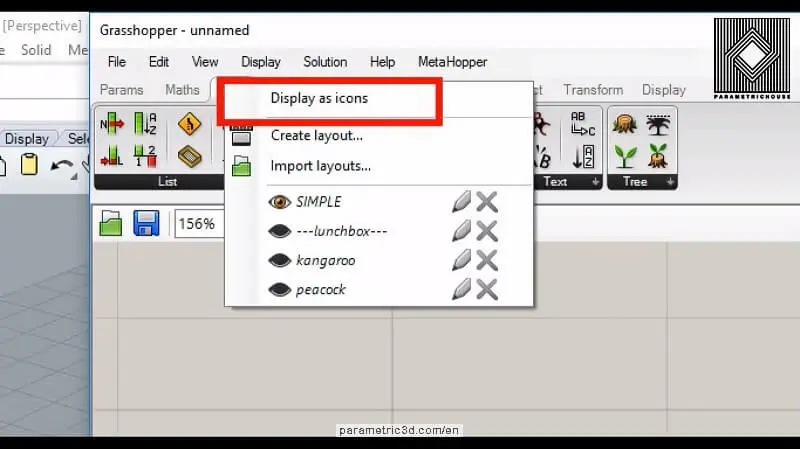
Welcome to the Grasshopper tutorials introduction tutorial. I will be talking about tips which will help you learn grasshopper faster and easier. Okay for the first tip we go to the right up here for the menu and the tip is about the interface. You can see that the default interface of Grasshopper 3d is the textual part so just right-click on the menu and choose display as icons.
Duration : 6 Minutes
It will make the menus compact, easier to reach and you can choose the menus a lot easier so this is the first step.
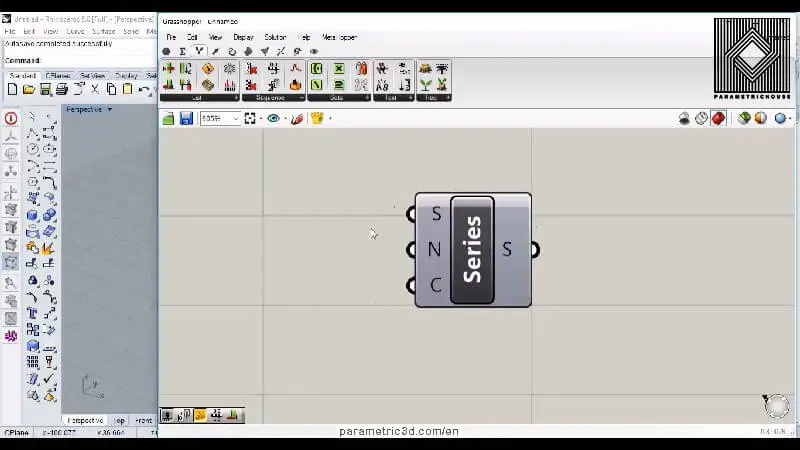
The second tip is about showing the tools. When you put a tool in the canvas, by default Grasshopper 3d will compact and show the name in the middle. It also Clips the name so you just only see the first letter, for the inputs and outputs so it’s better to correct this in the first place.
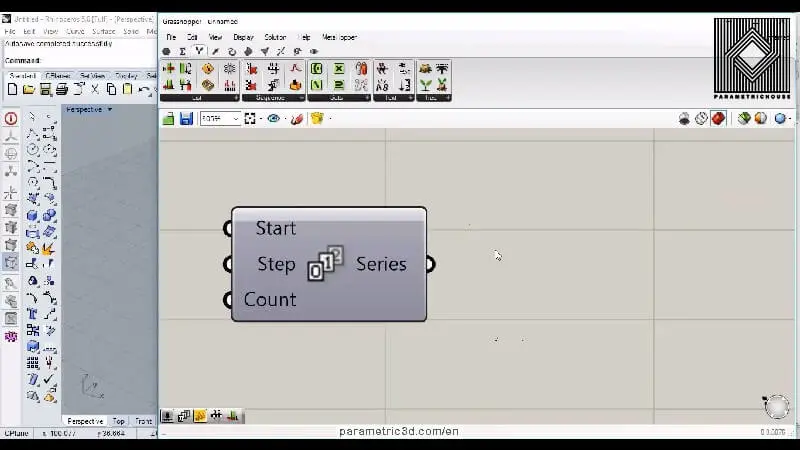
Go to the display and just choose draw icons so I have the icon in the middle. That’s better!
the second is to choose “draw full names”. I’m choosing this so we have a little bit more explanation for the input and outputs .it’s just a lot better!
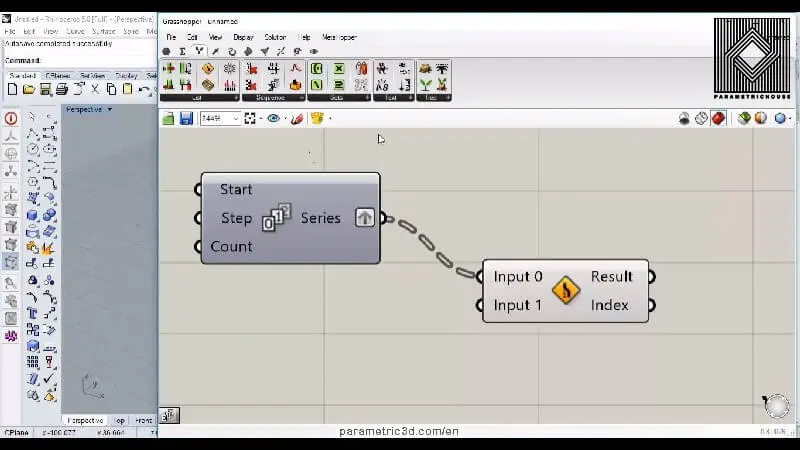
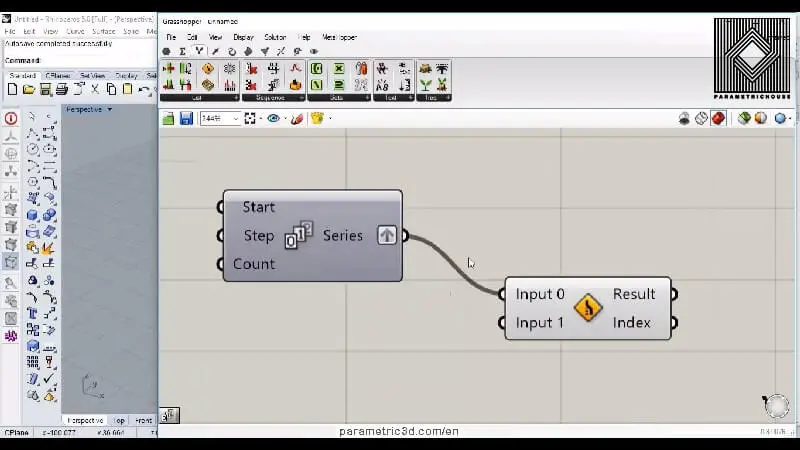
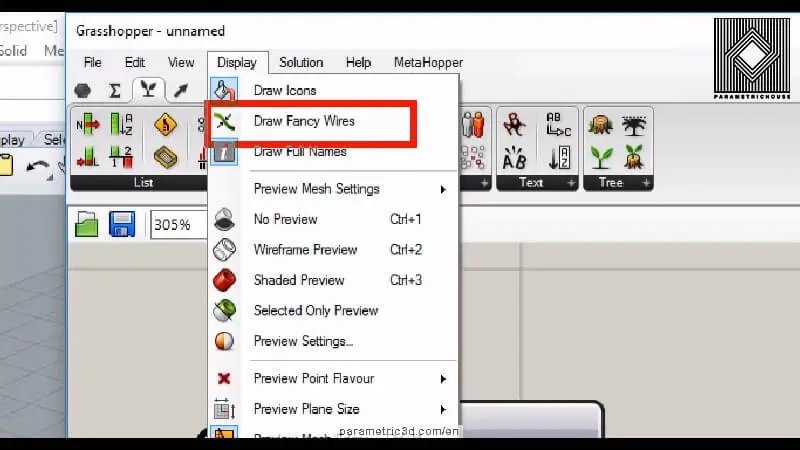
The third tip is to choose “Draw fancy wires”, and activate it. Because when we’re working, let me just give you an example right here! I’m just making the data in groups or branches of data by grafting it and we can’t see what happens.
But by choosing “draw fancy wires”, you can see that the data shows in groups. and that will help you to know what you need to do. that can be easier to decide whether to chose to flatten or graft or use other tools to reach what we want.
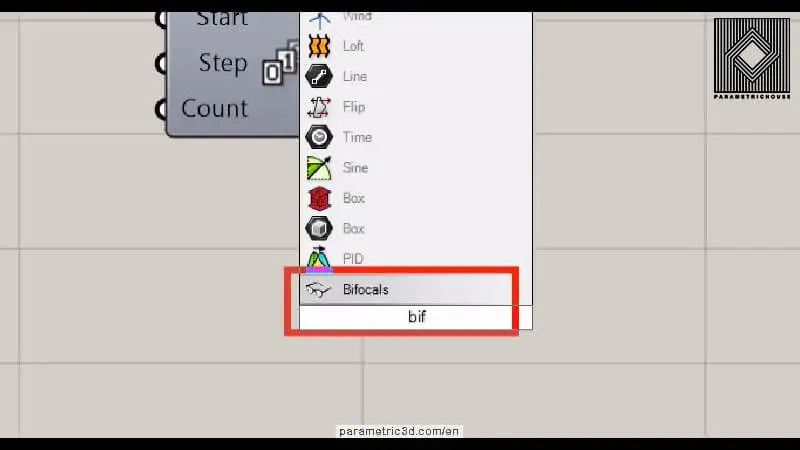
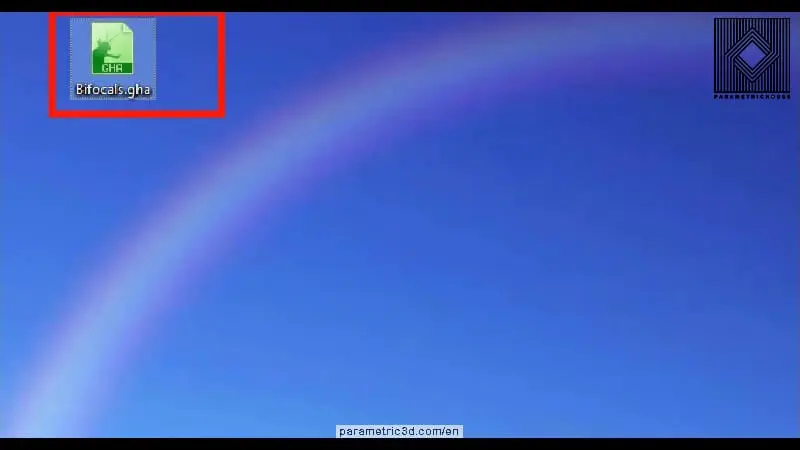
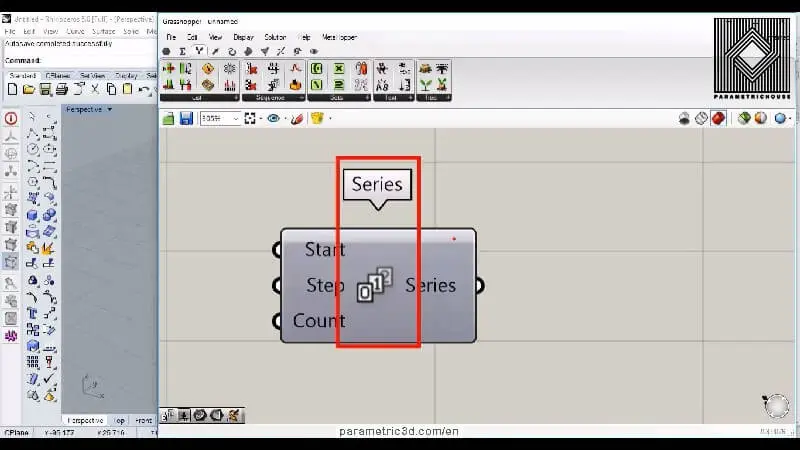
The next tip is the tool’s name because we lost it by choosing the “draw icons” so basically what I’m doing right now is using a plug-in called “bifocals”.You can just download the plug-in Here and drag, drop it into the canvas of Grasshopper 3d and it’s just installed.
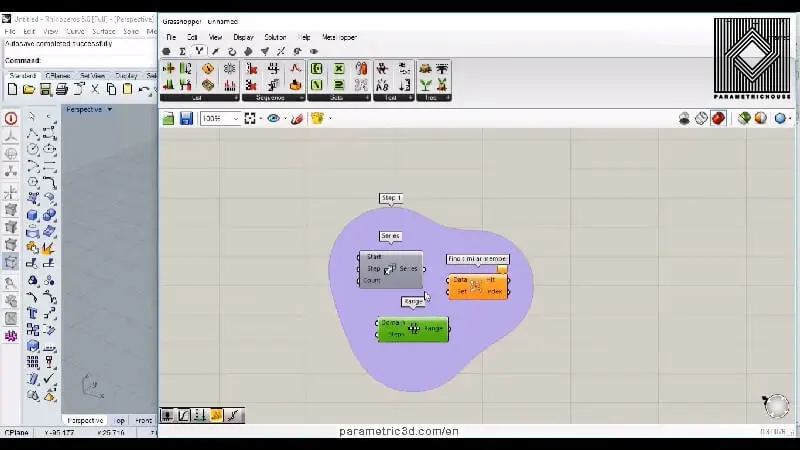
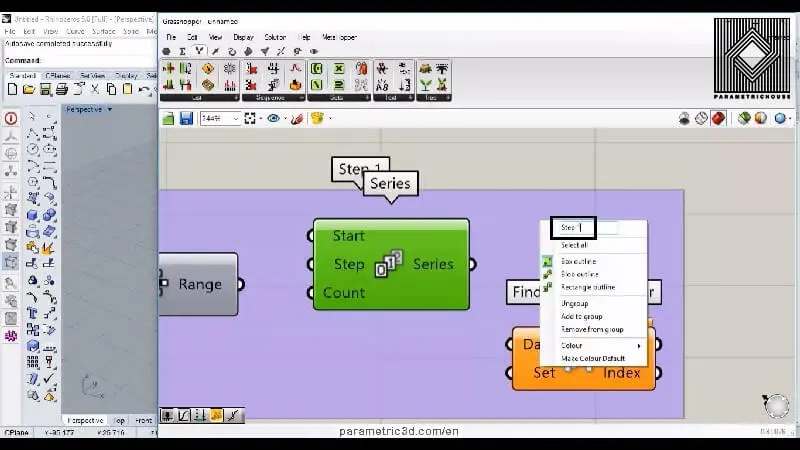
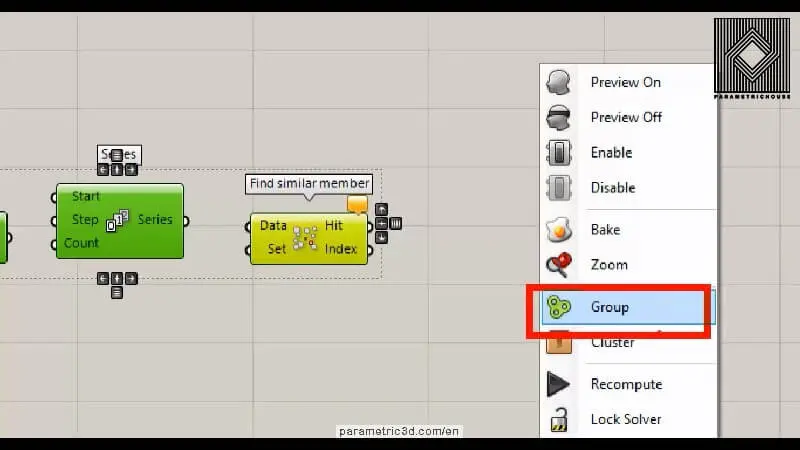
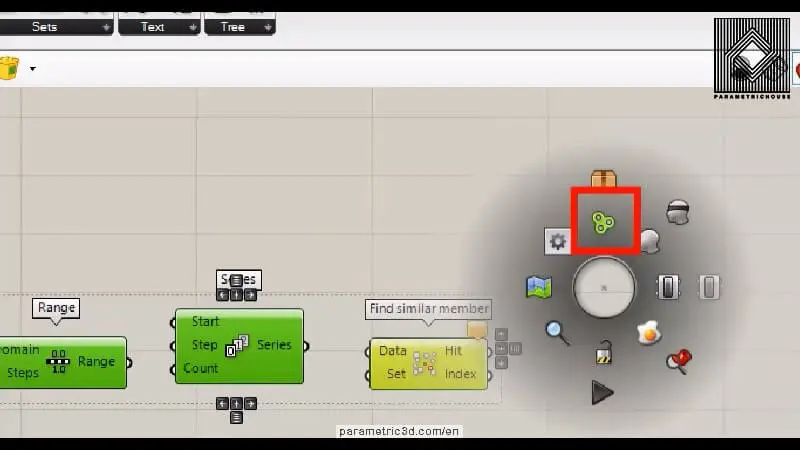
By double-clicking on the canvas and searching for “bif” you can activate this tool (it’s just for educational purpose).you can see that the name comes up the tool, and we have access to the name. It’s easier for us to remember the tool because our brain sees the name and the icon at the same time.and the last small tip we can use is grouping the tools because sometimes we need to move the tools and manage them better. We just choose the tools we want to group and by using middle mouse click or right click on the canvas we choose “group”. So you can see that those tools are in a group so you can move them easier and put a name on it. you right click on the group and choose a name!
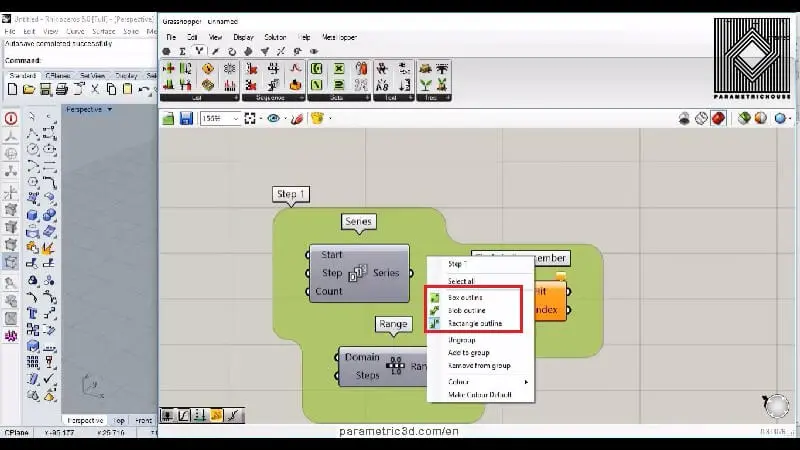
The next thing is that if you double-click on the group you will have a graphical blob that is fun!
Another double click and you will have a rectangular group.
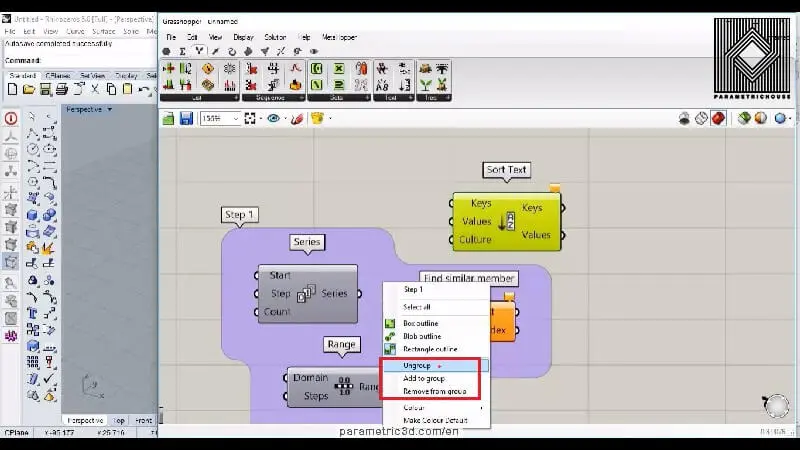
You can easily put a tool in the group by choosing the tool and right-clicking on the group. Choose “add to group” or you can choose it and remove it from the group or you can completely remove the group by choosing to ungroup.
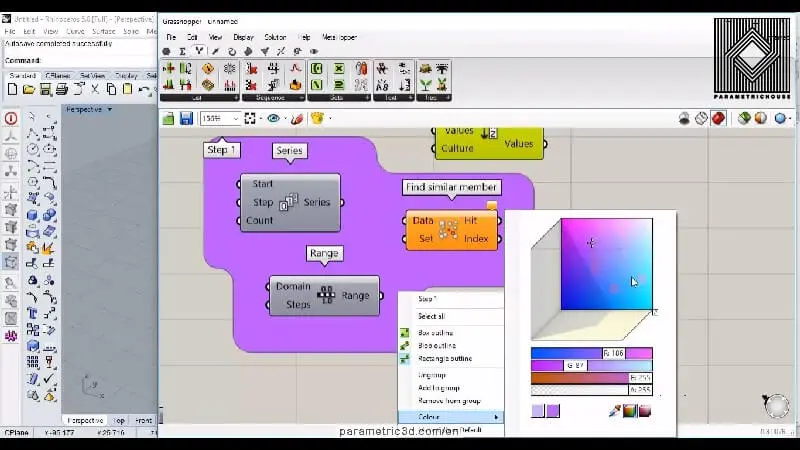
You can also change the group’s color by choosing the color option. This will help you manage your algorithm a lot easier.
These are the tips I wanted to talk about in the first place. In future tutorials, I will talk about grasshopper commands and I will be using these techniques to show the name of the tool and talk about in more details.
Welcome to the Grasshopper tutorials introduction tutorial. I will be talking about tips which will help you learn grasshopper faster and easier. Okay for the first tip we go to the right up here for the menu and the tip is about the interface. You can see that the default interface of Grasshopper 3d is the textual part so just right-click on the menu and choose display as icons.

In this Kangaroo Grasshopper tutorial, you’ll learn how to create a differential growth pattern on any mesh surface by projecting
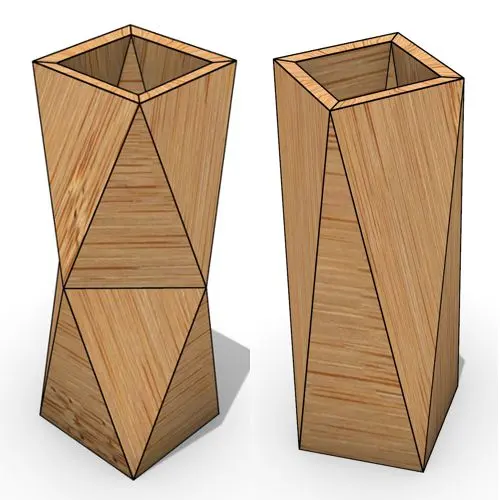
In this Grasshopper beginner tutorial, you’ll learn how to design a parametric vase with triangular faces, fully controllable height, thickness,
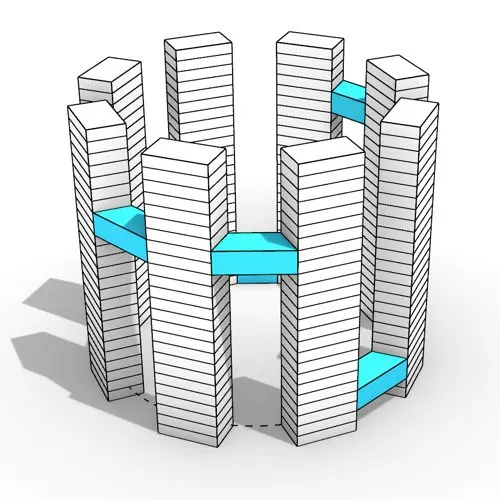
In this Grasshopper tutorial, you’ll learn how to design a series of parametric towers arranged around a curve and connect

In this Grasshopper tutorial, you’ll learn how to design a parametric wall using solid difference and contour techniques.

In this Grasshopper example file, you can model an exoskeleton Mesh structure with entwined curves parametrically.

In this Rhino Grasshopper tutorial for beginners, you’ll learn how to model a parametric Voronoi MultiPipe SubD structure on a
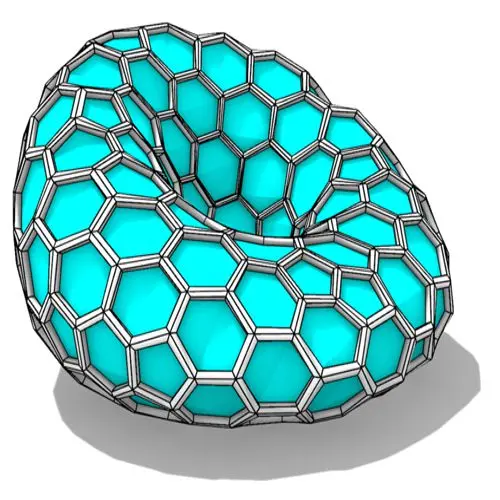
In this Grasshopper tutorial, you’ll learn how to create a parametric form by defining a base polygon and converting it
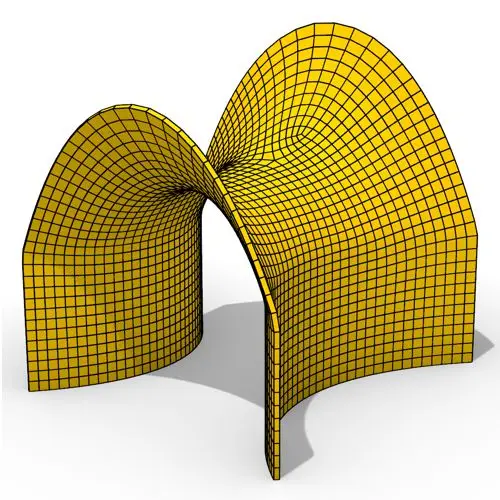
In this Grasshopper tutorial, you’ll learn how to create a minimal surface generated from a series of catenary curves using
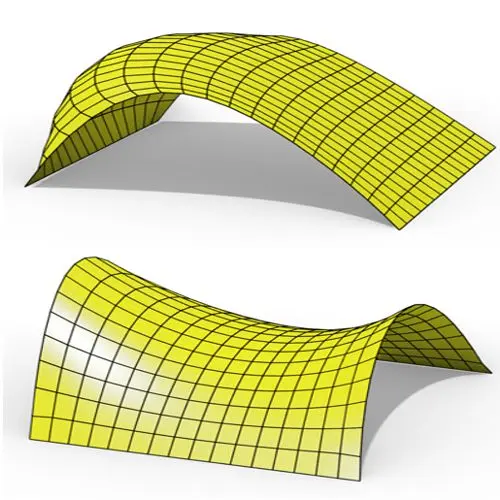
In this Grasshopper Kangaroo tutorial, you’ll learn how to create a parametric mesh and deform it using wind forces and
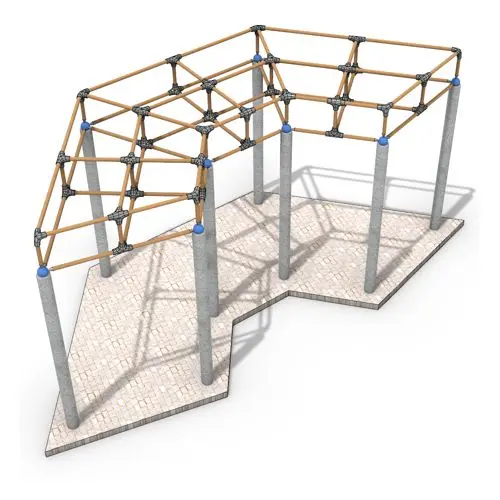
In this Grasshopper tutorial, you’ll learn how to create a simple two-layer Vierendeel space frame structure by defining any four-sided
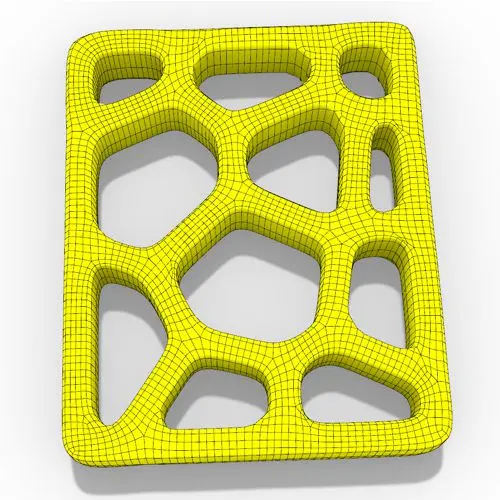
In this Grasshopper Voronoi tutorial, you’ll learn how to create a parametric mesh generated from random or controllable Voronoi cells
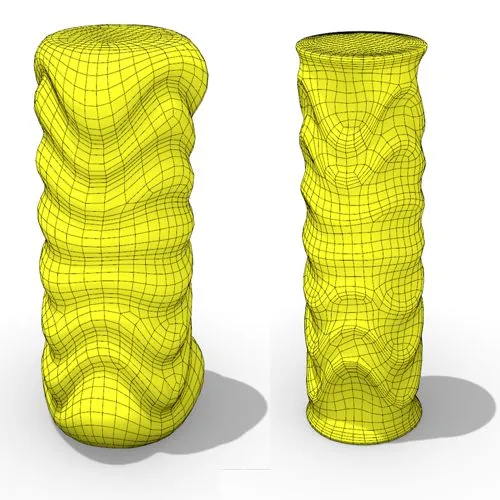
In this Grasshopper tutorial, you’ll learn how to create a dynamic parametric mesh using section curves and Kangaroo physics to
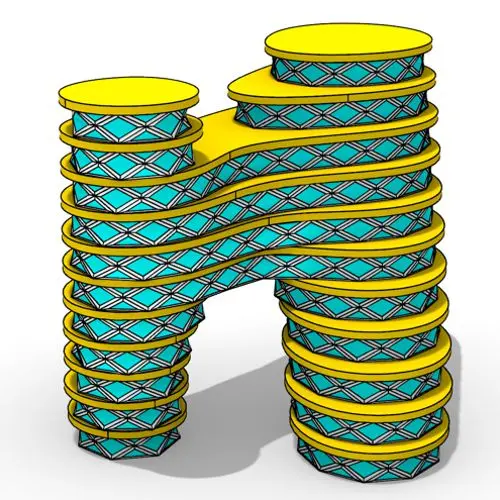
In this Grasshopper tutorial for beginners, you will learn how to design a parametric tower defined by four control points

In this Grasshopper tutorial for beginners, you will learn how to design a parametric facade composed of modular openings.
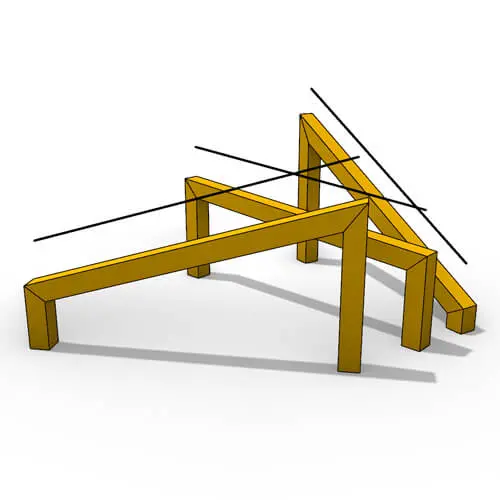
In this Grasshopper tutorial because we know how to convert a series of lines to a frame now we can
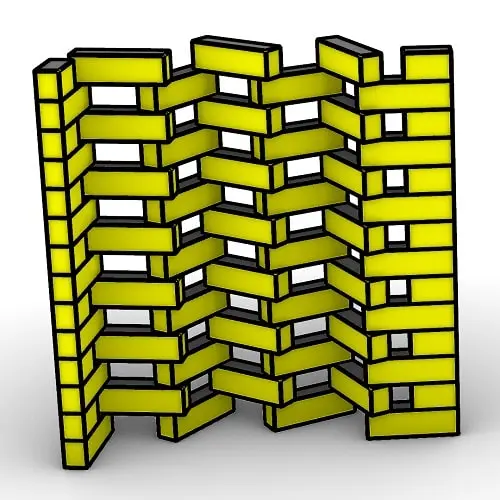
In this Rhino Grasshopper Script, you can model a parametric brick wall by defining a base curve
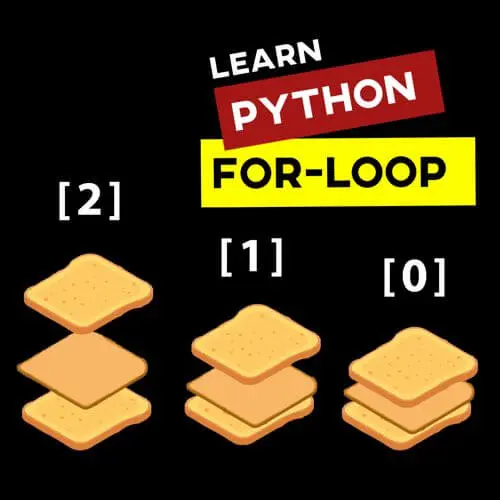
In this Grasshopper Python Lesson, we are going to talk more about the basics and how to use Print and
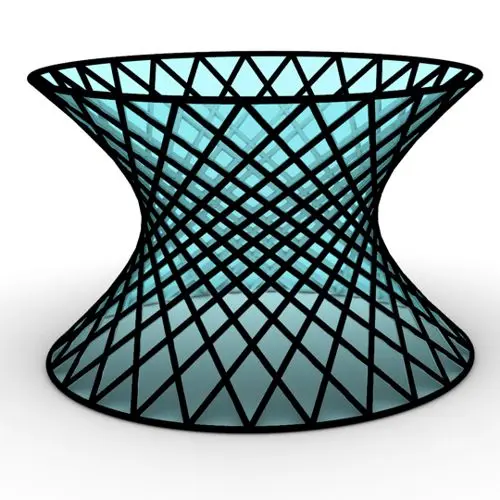
In this Rhino Grasshopper Tutorial we are going to learn how to make a series of rotating lines around two
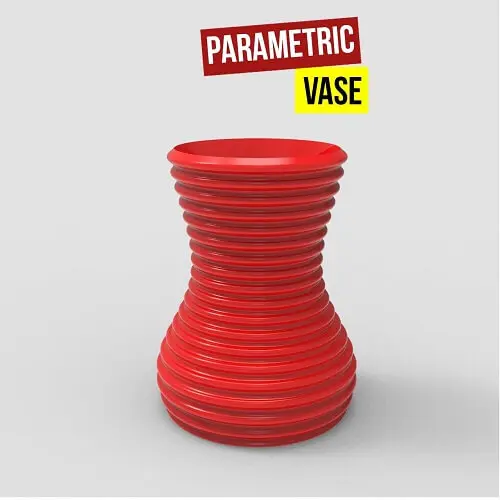
In this Paracourse Lesson (25 Minutes), You can learn how to model a parametric vase by using a Perlin Noise
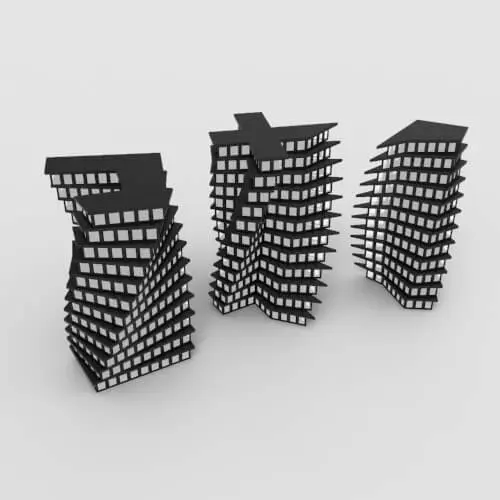
In this Grasshopper lesson, I will talk about managing output data with a turning tower example. First I,m going to
In the introductory lesson, we’ll explore the Grasshopper 1.0 canvas and familiarize ourselves with its fundamental features.
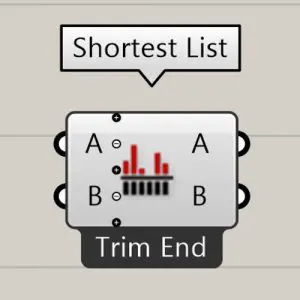
Now we have learned the basics of the canvas we will take a look at the most important aspect of
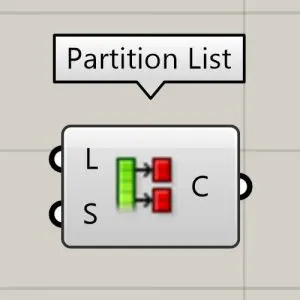
Now we will learn how to manage data with more tools like list length , partition list and simplify.
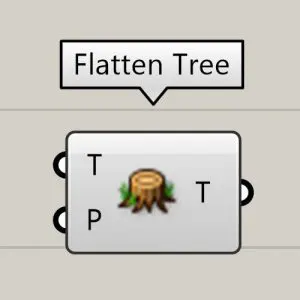
After learning about the Partition list, it’s time to learn how to destroy the data trees with flatten and also
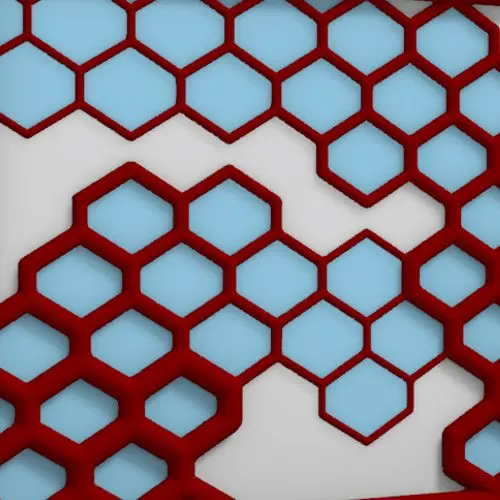
In this Grasshopper example file, you can design a parametric facade with variable-thickness hexagonal cells.
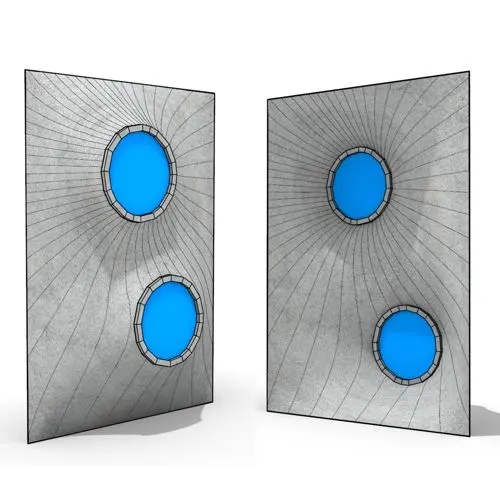
In this Grasshopper example file, you can model and simulate a parametric facade with free-form openings using the mesh relaxation
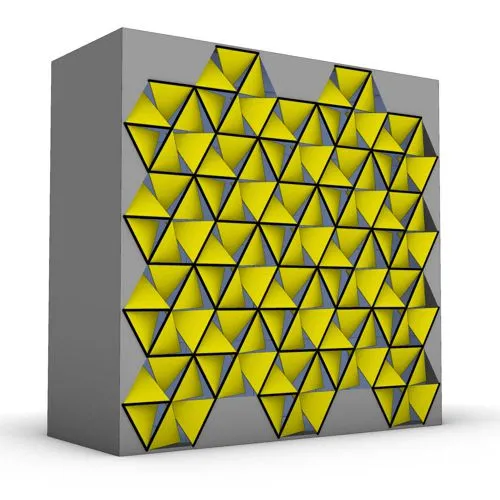
In this grasshopper example file, you can use a hexagonal module to model a parametric facade.
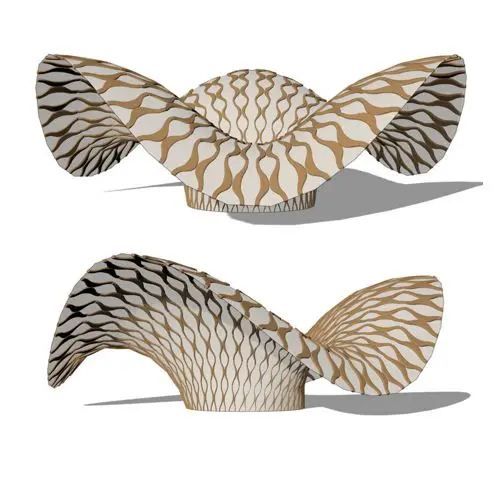
In this grasshopper example file, you can use the morph components to apply a 3d wave pattern on a mesh.
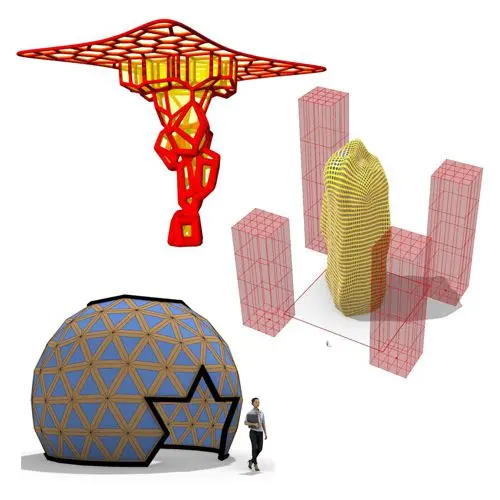
In these Grasshopper example files, you can design a parametric geodesic dome with customizable openings, generate optimized tower forms using

In this Grasshopper example file, you can create relaxing Voronoi cells on a facade , a blobby form with a

Parametric Ideas for Architects @2025
This tutorial or example file is exclusive to Paracourse Members.
Paracourse is an extensive library of video tutorials and example files, designed to guide you through your parametric design journey. With over 1,500 open example files & 600 Video Tutorials, you can freely edit and adapt them for your projects—no credit required.

Learn parametric design from scratch with over 100 hours of step-by-step tutorials, covering beginner to intermediate levels. Master components and their use in the design process.

Explore our open-to-edit .gh files to see how each subject is designed parametrically using Grasshopper3D. Freely adapt them for your projects—no credit required.

Delve into complete algorithms with our advanced tutorials. Learn the logic behind each step, understand how the parts work together, and see how to apply them effectively in your designs.
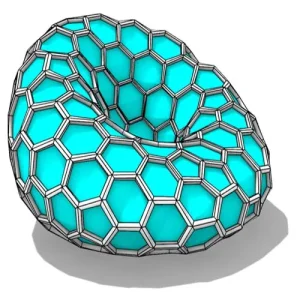
Grasshopper empowers architects and designers to create sophisticated, customizable designs with ease.
Architects, industrial designers, artists, and anyone passionate about parametric design will find value in this course.
With diverse tutorials and open example files, you’ll have everything you need to tackle any design challenge.
Mastering Grasshopper with Paracourse can significantly enhance your career prospects.
Reviews
There are no reviews yet.