
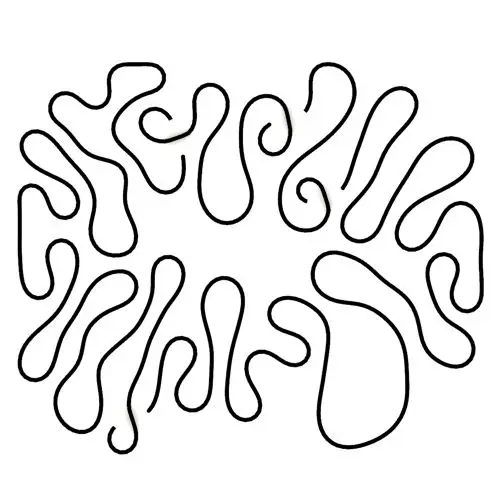
Differential Growth
In this Kangaroo Grasshopper tutorial, you’ll learn how to create a differential growth pattern on any mesh surface by projecting

In this Kangaroo Grasshopper tutorial, you’ll learn how to create a differential growth pattern on any mesh surface by projecting
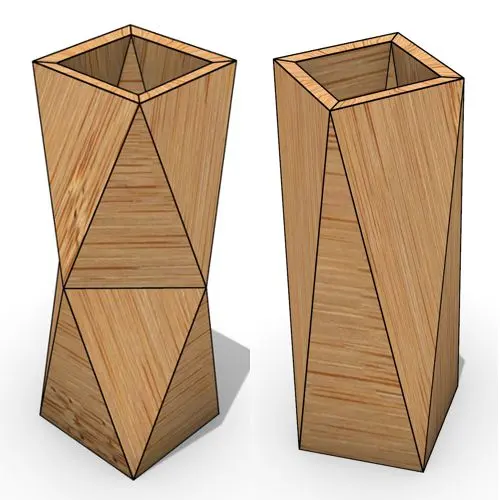
In this Grasshopper beginner tutorial, you’ll learn how to design a parametric vase with triangular faces, fully controllable height, thickness,
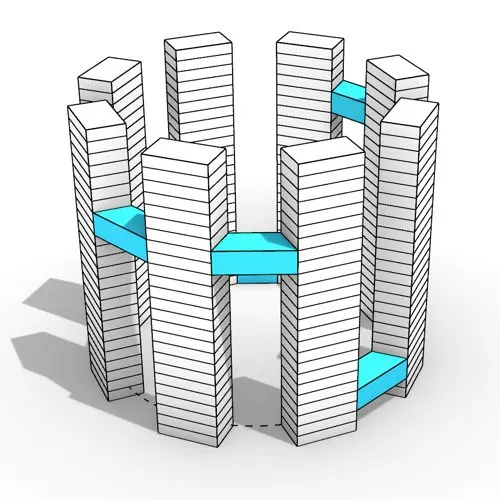
In this Grasshopper tutorial, you’ll learn how to design a series of parametric towers arranged around a curve and connect

In this Grasshopper tutorial, you’ll learn how to design a parametric wall using solid difference and contour techniques.

In this Grasshopper example file, you can model an exoskeleton Mesh structure with entwined curves parametrically.

In this Rhino Grasshopper tutorial for beginners, you’ll learn how to model a parametric Voronoi MultiPipe SubD structure on a
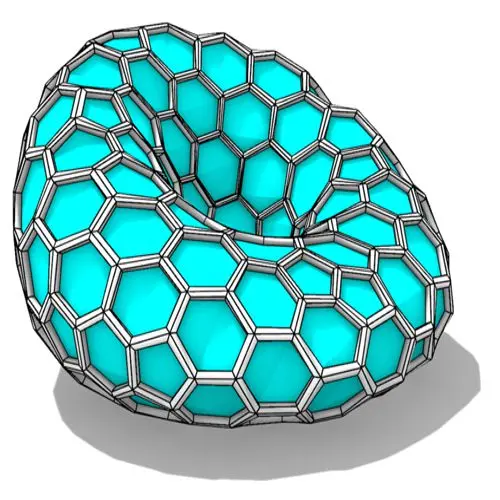
In this Grasshopper tutorial, you’ll learn how to create a parametric form by defining a base polygon and converting it
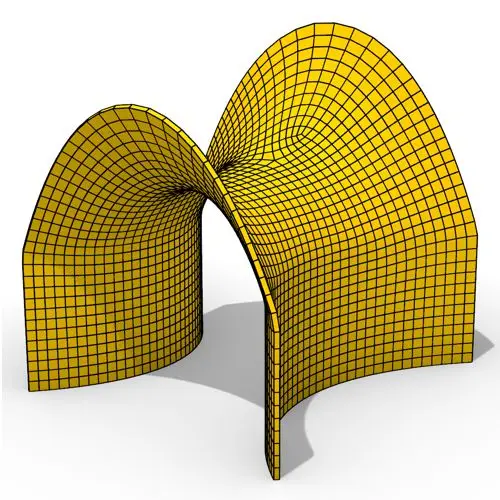
In this Grasshopper tutorial, you’ll learn how to create a minimal surface generated from a series of catenary curves using
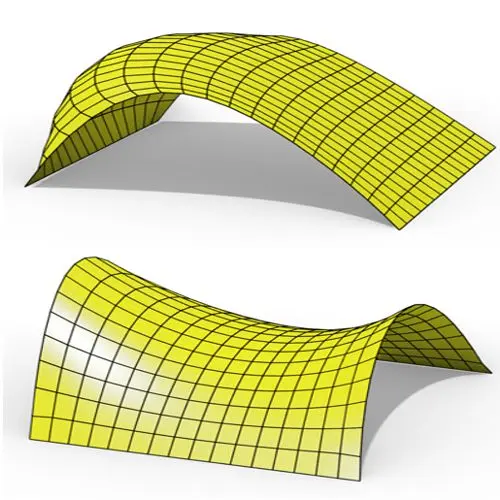
In this Grasshopper Kangaroo tutorial, you’ll learn how to create a parametric mesh and deform it using wind forces and
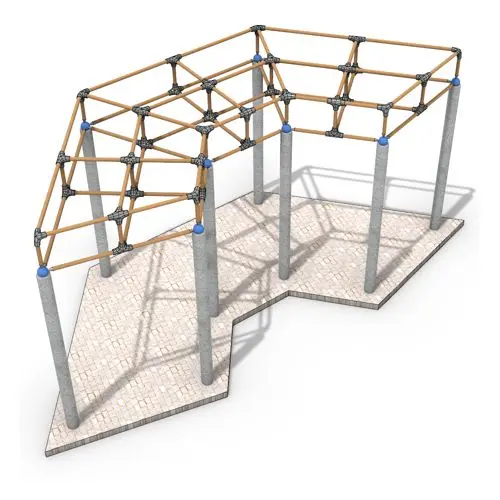
In this Grasshopper tutorial, you’ll learn how to create a simple two-layer Vierendeel space frame structure by defining any four-sided
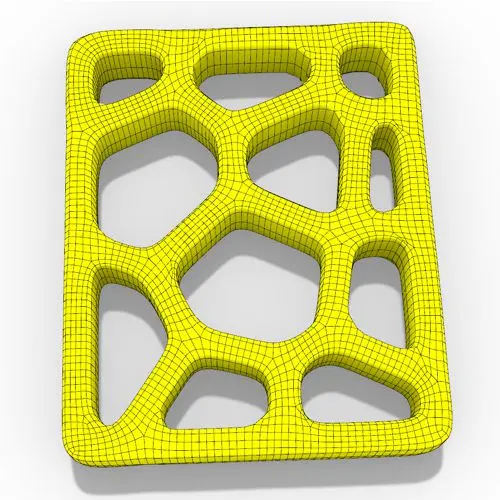
In this Grasshopper Voronoi tutorial, you’ll learn how to create a parametric mesh generated from random or controllable Voronoi cells
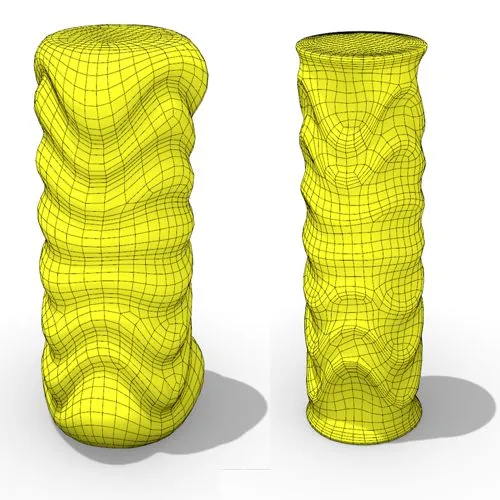
In this Grasshopper tutorial, you’ll learn how to create a dynamic parametric mesh using section curves and Kangaroo physics to
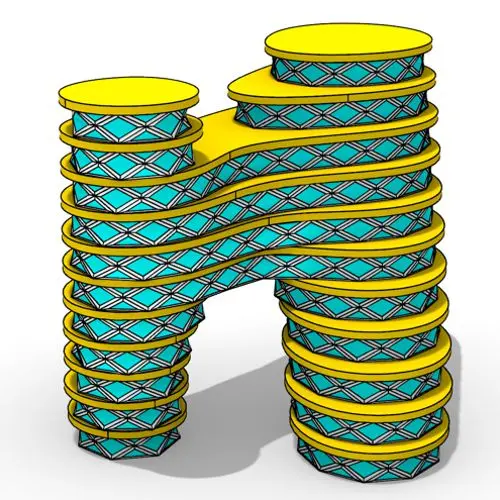
In this Grasshopper tutorial for beginners, you will learn how to design a parametric tower defined by four control points

In this Grasshopper tutorial for beginners, you will learn how to design a parametric facade composed of modular openings.
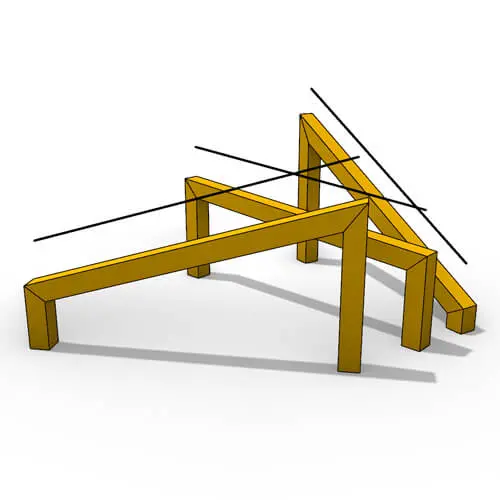
In this Grasshopper tutorial because we know how to convert a series of lines to a frame now we can
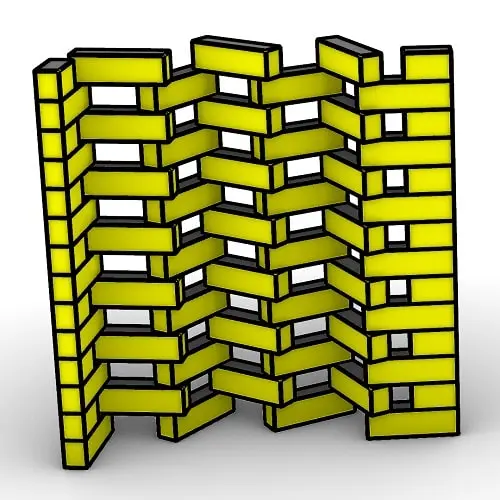
In this Rhino Grasshopper Script, you can model a parametric brick wall by defining a base curve
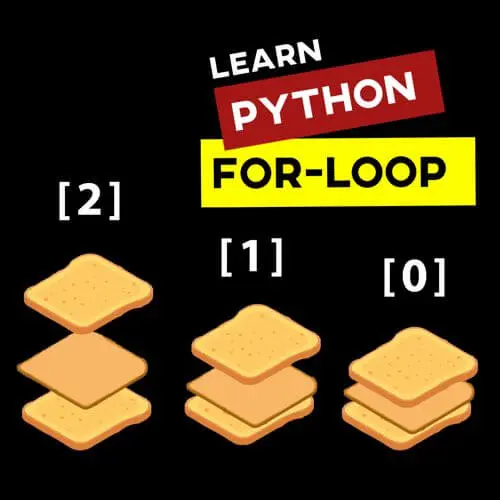
In this Grasshopper Python Lesson, we are going to talk more about the basics and how to use Print and
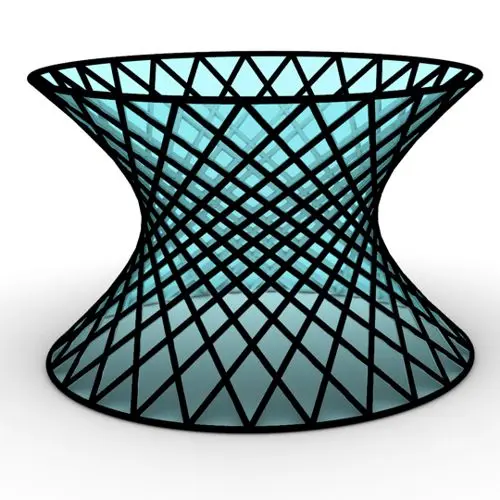
In this Rhino Grasshopper Tutorial we are going to learn how to make a series of rotating lines around two
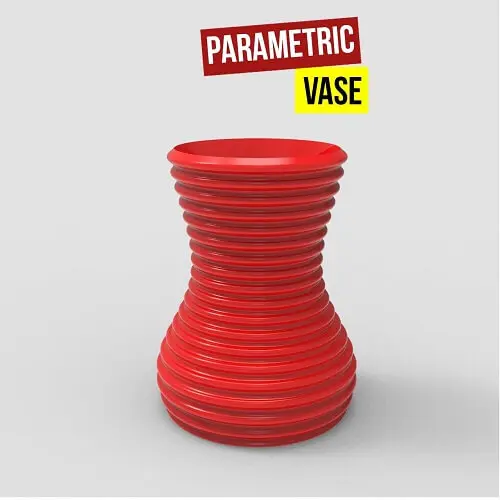
In this Paracourse Lesson (25 Minutes), You can learn how to model a parametric vase by using a Perlin Noise
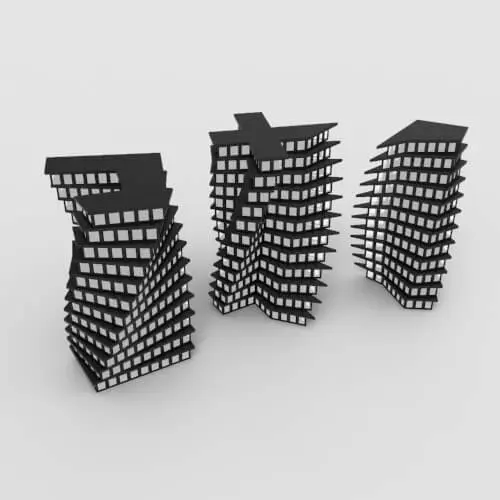
In this Grasshopper lesson, I will talk about managing output data with a turning tower example. First I,m going to
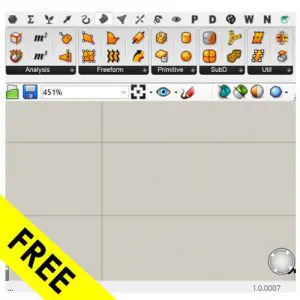
In the introductory lesson, we’ll explore the Grasshopper 1.0 canvas and familiarize ourselves with its fundamental features.
Now we have learned the basics of the canvas we will take a look at the most important aspect of
Now we will learn how to manage data with more tools like list length , partition list and simplify.
After learning about the Partition list, it’s time to learn how to destroy the data trees with flatten and also
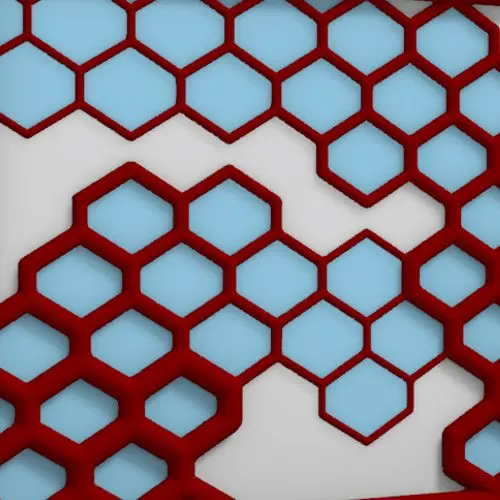
In this Grasshopper example file, you can design a parametric facade with variable-thickness hexagonal cells.
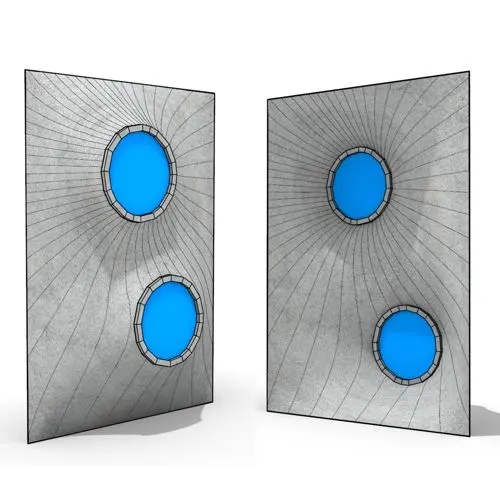
In this Grasshopper example file, you can model and simulate a parametric facade with free-form openings using the mesh relaxation
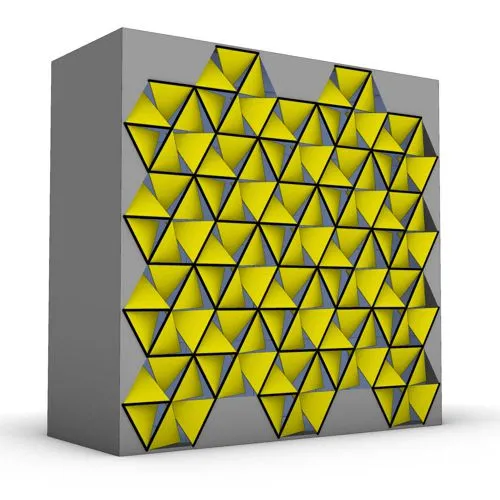
In this grasshopper example file, you can use a hexagonal module to model a parametric facade.
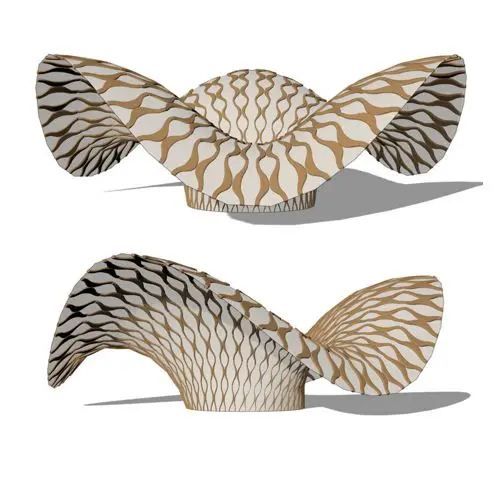
In this grasshopper example file, you can use the morph components to apply a 3d wave pattern on a mesh.
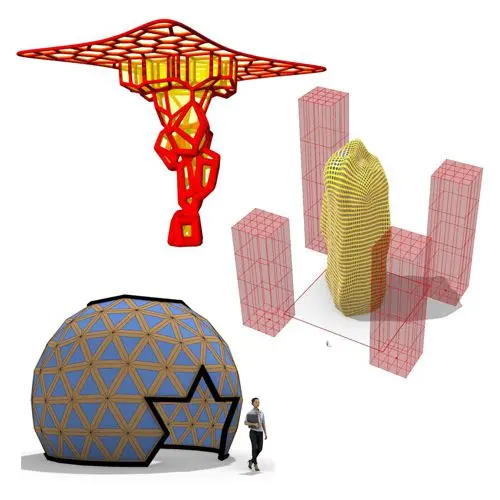
In these Grasshopper example files, you can design a parametric geodesic dome with customizable openings, generate optimized tower forms using

In this Grasshopper example file, you can create relaxing Voronoi cells on a facade , a blobby form with a


Learn parametric design from scratch with over 100 hours of step-by-step tutorials, covering beginner to intermediate levels. Master components and their use in the design process.

Explore our open-to-edit .gh files to see how each subject is designed parametrically using Grasshopper3D. Freely adapt them for your projects—no credit required.
Delve into complete algorithms with our advanced tutorials. Learn the logic behind each step, understand how the parts work together, and see how to apply them effectively in your designs.
Reviews
There are no reviews yet.